|
|
program manager |
|
|
||
|
|
Triple booting on an old PC, part 2: OpenBSD |
OpenBSD on the SempronWhen it comes to a modern portable Unix system, the choice is generally Linux, OpenBSD and NetBSD. I'm not counting FreeBSD as it's heavier than the other two and more of a server OS in my opinion. As we have already seen, this old relic of a computer can boot a modern Linux distro, at least terminal-only. Graphical Linux tends to be more RAM-hungry though in my experience, unless you take a lot of steps to optimize the RAM usage. OpenBSD and NetBSD are simple Unix systems which have changed over time a lot less than Linux, to the point of still supporting floppy installation, unlike most Linux distros. In my experience, they are some of the smallest "full-fledged" modern Unix systems too, which is great for old computers! There are smaller systems like ELKS which runs in 640 KB of RAM, but they're more limited in software support and more ways. The BSD systems are a lot less popular than Linux though and have less software/hardware support - it's very likely I'll try Linux on this machine too. However, at the time I'm writing this, Linux is ending support for the 486, which is a sign that using Linux on old computers will get harder and harder. This computer has a 64-bit CPU, so why not install 64-bit OpenBSD? I downloaded the ISO from the OpenBSD website, burned it onto a DVD and tried to boot from it. The ISO is a bit over 700 MB, so some CDs will be too small for it. Unfortunately, the system froze while loading the network driver. I thought that it might expect some newer CPU instructions and decided to try the 32-bit version. The 32-bit version booted up all the way to the installer! Maybe the 64 bit version will be able to boot with a custom kernel and some patches, but for now I'm going with the 32-bit one. It might use less RAM too (I don't think OpenBSD uses x32 ABI).
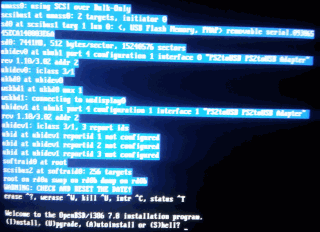
Boot flag preparationBefore installing though, we need to set the boot flag on the OpenBSD partition so that it gets detected properly by the installer. To do that, we boot the PC with any Linux ISO (I used Arch just like in part 1), then use the "a" command in fdisk to set the boot flag on the OpenBSD partition. I explained fdisk usage in more detail in part 1. After this, let's reboot, put the OpenBSD disc back in and get to the installation! OpenBSD network setupOpenBSD's installer has an old-looking, but surprisingly straightforawrd command line interface: Welcome to the OpenBSD 7.6 installation program (I)nstall, (U)pgrade, (A)utoinstall or (S)hell? First, we type "i" to begin installing the system. The installer will ask for a keyboard layout and then for a hostname:
Choose your keyboard layout ('?' or 'L' for list): pl
System hostname? (short form, e.g. 'foo') crimson_obsd
The hostname can be pretty much anything without spaces, mine is "crimson_obsd". It will be a part of the command prompt and can be used to address the system on a network. Now the installer will prompt for network setup: Available network interfaces are: nfe0 vlan0 Network interface to configure? (name, lladdr, '?' or 'done') [nfe0] Most of the time we want to pick the first interface listed, which is "nfe0" for me, but might be different for you. "vlan0" is a virtual LAN interface which doesn't correspond to physical network cards. You can also just type "done" - the system will still install without an Internet connection, but you'll have to set it up post-install. Then the installer asks if the computer has a static or dynamic IP: IPv4 address for nfe0? (or 'autoconf' or 'none') [autoconf] If your computer has a static IP address on its LAN, type that address in. If it has a dynamic address, then type "autoconf". If you have no idea what I'm talking about, then your PC most likely has a dynamic IP, so type "autoconf". My computer has a dynamic IP, so let's type "autoconf" in. Then we get a similar prompt for IPv6: IPv6 address for nfe0? (or 'autoconf' or 'none') [none] I won't be using IPv6 on this system, so let's type in "none". Then type in "done" if it asks for any more network interfaces - one will be enough. User setupNow the installer will ask for the root password and then we get some technical looking questions: Start sshd(8) by default? [yes] no Do you expect to run the X Window System? [yes] yes Do you want the X Window System to be started by xenodm(1)? [no] yes Change the default console to com0? [no] no sshd is a tool used for remotely accessing Unix systems. This is a desktop, not a server, so I'll say no - not having sshd running will save a bit of RAM. If your system is going to be a server, you'd likely want to say "yes" to this question. The X Window System should be enabled if we're going to use a GUI (an interface more like Windows than DOS) - I'll say yes here. If you are sure you'll be using OpenBSD command line only, you can say no. xenodm is a graphical login screen - I'll enable it. If I left it disabled, the system would boot into a command line login and GUI could be started with the "startx" command. For the com0 question, say no unless you know what you are doing (and installing on an embedded system) - saying yes means the system would be used with a serial port terminal rather than keyboard, mouse and monitor. Now we set up a non-root user account and set the timezone:
Setup a user? (enter a lower-case loginname, or 'no') [no] crimson
Full name for user crimson? [crimson] crimson_phoneme
Password for user crimson? (will not echo)
Password for user crimson? (again)
What timezone are you in? ('?' for a list) ?
My username here is "crimson", yours can obviously be different. OpenBSD partitioningIn part 1, I already made a partition for every system I'm installing in this series. However, the OpenBSD parttion is a "disklabel" - a partition that has its own partitions! The installer will list the computer's disks:
Available disks are: sd0 wd0 wd1.
Which disk is the root disk? ('?' for details) [sd0] ?
Here we type "?" to see the sizes and BIOS names of every disk: sd0: USB Flash Memory, PMAP serial.09306545ECA140003E6A (7.3G) wd0: CT1000MX500SSD1 (931.5G) wd1: SAMSUNG HD501LJ (465.0G) As you can see, removable disks start with "sd" and fixed disks start with "wd". wd0 is my SSD here, so I'll choose it: The installer shows the partition table:
Which disk is the root disk? ('?' for details) [sd0] wd0
Encrypt the root disk with a (p)assphrase or (k)eydisk? [no] no
Disk: wd0      geometry: 121601/255/63 (1953525168 sectors)
Offset: 0      Signature: 0xAA55
           Starting         Ending       LBA Info:
 #: id     C   H   S -      C   H   S [      start:      size ]
*0: 07     0  32  33 -  13054  75  13 [       2048: 209715200 ] NTFS
 1: 0C 13054  75  14 -  39162 160  30 [  209717240: 419430400 ] FAT32 (LBA)
 2: A6 39162 160  39 -  52216 203  19 [  629147640: 209715200 ] OpenBSD
Use (W)hole disk, use the (O)penBSD area or (E)dit the MBR? [OpenBSD] o
We're doing a multi-boot setup, so we're not encrypting the whole disk with OpenBSD's encryption. The installer detects that we made a partition for OpenBSD in part 1 - let's type "o" to use it. It will automatically generate a proposed layout: The auto-allocated layout for wd0 is: # size offset fstype [fsize bsize cpg] a: 1.0G 629147648 4.2BSD 2048 16384 1 # / b: 1.2G 631244000 swap c: 931.5G 0 unused d: 4.0G 633065216 4.2BSD 2048 16384 1 # /tmp e: 6.0G 642253792 4.2BSD 2048 16384 1 # /var f: 10.3G 654834624 4.2BSD 2048 16384 1 # /usr g: 1.0G 676516768 4.2BSD 2048 16384 1 # /usr/X11R6 h: 14.3G 678613920 4.2BSD 2048 16384 1 # /usr/local i: 100.0G 2048 NTFS j: 200.0G 209717248 MSDOS k: 3.0G 700626304 4.2BSD 2048 16384 1 # /usr/src l: 6.0G 716542624 4.2BSD 2048 16384 1 # /usr/obj m: 52.3G 729125536 4.2BSD 2048 16384 1 # /home Use (A)uto layout, (E)dit auto layout, or create (C)ustom layout? [a] c I think this layout has way too many partitions in the disklabel! Let's make our own layout by typing in "c". This launches the disklabel editor: Label editor (enter '?' for help at any prompt) wd0> This is a command-line editor similar to fdisk, but with different commands and it edits the disklabel, not the whole disk's partition table. Let's take a look at the partition table with "p": wd0> p OpenBSD area: 629147648-838862048; size: 209715200; free: 209715200 # size offset fstype [fsize bsize cpg] c: 931.5G 0 unused i: 100.0G 2048 NTFS j: 200.0G 209717248 MSDOS Unlike Linux, which assigns numbers to partitions sequentially (sda1, sda2, ...), OpenBSD often reserves letters for specific partitions. For instance, partition "c" is not a real partition, but the entire disk. Partitions i and j here are the MBR parttions of other operating systems. Now let's make some partitions to install OpenBSD on. I'll use the following partition layout:
I use this straightforward setup on most of my Unix systems - 32 GB is more than enough software space for me and a separate home partition helps when reinstalling/backing up data - this way data and the OS are on separate partitions! You can also set up more partitions if you want, such as /var (to limit logging space) or /usr/local (to enhance security with wxlocal), but this leaves less space for generic data. If you want the system to just work, this 3-partition layout will be enough. Let's make the root partition first by typing "a": wd0> a partition to add: [a] offset: [629147648] size: [209715200] 32g FS type: [4.2BSD] mount point: [none] / In "partition to add" and "offset", we just press Enter to use the default values. In "size", we obviously type in the size - the default size in sectors but we can use gigabytes like "32G". For filesystem type we use the default 4.2BSD and for mountpoint we type "/" - the Unix root directory. This created the "a" partition - in OpenBSD the root partition is always letter "a". Now let's make the swap partition: wd0*> a partition to add: [b] offset: [696257080] size: [142605760] 4g FS type: [swap] swap This computer has 1 GB of RAM, so 4 GB of swap space should be more than enough and OpenBSD doesn't use a lot of RAM. The "b" partition is always swap, so the disklabel editor automatically detected the filesystem type as swap. Now for the /home partition we use the default size so it takes up remaining disklabel space: wd0*> a partition to add: [d] offset: [704659095] size: [134203753] FS type: [4.2BSD] mount point: [none] /home Let's take a look at the disklabel partition table with "p": wd0*> p OpenBSD area: 629147648-838862048; size: 209715200; free: 9 # size offset fstype [fsize bsize cpg] a: 67109440 629147640 4.2BSD 2048 16384 1 # / b: c: 931.5G 0 unused i: 100.0G 2048 NTFS j: 200.0G 209717248 MSDOS Looks good - we save the disklabel and exit the editor by typing "q". If you want to exit without saving, type "x". The system might ask if you want to initialize any other disks - type "done", as we're only using one disk in this OpenBSD setup. Copying system filesNow the installer asks for the location of "sets" (in BSD systems that means non-kernel software included with the system): Let's install the sets! Location of sets? (cd0 disk http or 'done') [cd0] cd0 Pathname to the sets? (or 'done') [7.8/i386] Type "cd0" as we're installing from optical drive, then press Enter to accept the default path to the sets. Then the installer will ask which sets to install:
Select sets by entering a set name, a file name pattern or 'all'. De-select
sets by prepending a '-', e.g. '-game*'. Selected sets are labeled '[X]'.
     [X] bsd        [X] comp78.tgz    [X] xbase78.tgz   [X] xserv78.tgz
     [X] bsd.rd     [X] man78.tgz     [X] xshare78.tgz
     [X] base78.tgz [X] game78.tgz    [X] xfont70.tgz
Set name(s)? (or 'abort' or 'done') [done] done
I'll just type "done" to install all of the sets - we have a lot of space so why nat install the complete system? The installer will copy the files to the OpenBSD partition and display progress bars while doing so. Then it will ask if we want to copy any more sets: Location of sets? (cd0 disk http or 'done') [done] done We installed the entire system, so let's type in "done". After taking some time to finish the setup, the system will show a reboot prompt: Exit to (S)hell, (H)alt or (R)eboot? [reboot] We finally installed OpenBSD, so let's remove the install disc and press Enter to reboot! Now we need to do some additional configuration to get OpenBSD to dual boot with Windows. Dual boot setupNow the first thing we need to do is boot the Linux ISO again, then remove the boot flag with fdisk from the OpenBSD partition, keeping it only on the Windows XP partition. The partition table should look close to this: Device Boot Start End Sectors Size Id Type /dev/sda1 * 2048 209717247 209715200 100G 7 HPFS/NTFS/exFAT /dev/sda2 209717248 629147647 419430400 200G c W95 FAT32 (LBA) /dev/sda3 629147648 838862847 209715200 100G a6 OpenBSD As we can see, after toggling the OpenBSD partition's boot flag only the NTFS partition (the Windows one) should have the boot flag set. I explained fdisk usage in more detail in part 1 and in the preparation section of this part. Then we need to copy the OpenBSD partition boot sector to a file that can be read by the Windows bootloader. To do this, we boot the OpenBSD install disc and repeat the installation prompts, just like installing normally, until we get to this prompt: Use (W)hole disk, use the (O)penBSD area or (E)dit the MBR? [OpenBSD] ! At this point type "!" (a single exclamation mark without quotes) and press Enter to get into the command shell. If we use the shell at an earlier point in the installation, the system won't let us access the disklabel. Now let's take a look at the disklabel with this command: # disklabel wd0 If you're installing on a different disk on wd0, type that disk in the command instead of wd0. The command will show the partitions on the disklabel: # size offset fstype [fsize bsize cpg] a: 67109440 629147640 4.2BSD 2048 16384 1 # / b: c: 931.5G 0 unused i: 100.0G 2048 NTFS j: 200.0G 209717248 MSDOS We'll be copying the OpenBSD boot record to the FAT32 partition (shown by OpenBSD as "MSDOS"), as the install image cannot access NTFS. To do this, we mount that partition, which is wd0j for me: # mount /dev/wd0j /mnt The command didn't output anything - that means the partition mounted successfully. Now for the command to copy the partition boot record: # dd if=/dev/rwd0a of=/mnt/OPENBSD.PBR bs=512 count=1 Note "rwd" instead of "wd" - we're accessing the raw partition data, not the filesystem, and the "r" stands for raw. Then we unmount the FAT32 partition, remove the install disc and reboot: # umount /mnt # reboot Yes, the command is "umount", not "unmount". It's spelled like this since very old Unix systems had a 6-character filename limit and the name "umount" stayed to this day. After rebooting, the computer boots to Windows XP. In Windows, we need to copy the OPENBSD.PBR file from the FAT32 partition to the Windows partition, which is C: for me. Then we open C:\BOOT.INI in Notepad (or any other plain text editor). If you can't see the file, enable showing hidden files and system files in Windows Explorer options. The file will look somewhat like this: [boot loader] timeout=30 default=multi(0)disk(0)rdisk(0)partition(1)\WINDOWS [operating systems] multi(0)disk(0)rdisk(0)partition(1)\WINDOWS="Microsoft Windows XP Professional" /noexecute=optin /fastdetect At the end of the file, we add this line, then save: C:\OPENBSD.PBR="OpenBSD" We can also change the "timeout" line to set how many seconds will the computer wait before automatically booting into Windows - I set it to 30 seconds. That's it for part 2! From now on, the PC will show a menu on startup allowing to choose booting Windows XP or OpenBSD. In part 3, I'll be installing FreeDOS on this computer and getting it to triple boot with Windows XP and OpenBSD! |
||
|
|
blog navigator |

|
||